Webflow client feedback, fixed by Claude: what we tested
We left four client notes on a Webflow site: a headline, a button, a CMS title and a fade-in. Claude made each change in Webflow. Here is what happened.
Yes: a note a client leaves on a Webflow page can come back changed in Webflow, published and ready for review, without anyone opening the Designer. On 27 November 2026 we tried it with four notes on a test site. All four were ready for review within six minutes of being left. This is what we did, what Claude did, and what we have not tested yet.
The setup
- A site made from a free Webflow template, published at its
webflow.ioaddress. - A project in Boolu for that site, with four notes of the kind clients leave: one about a text, one about a style, one about a CMS item and one about an animation.
- One Claude Code session with two MCP servers connected: Boolu's, where the notes are, and Webflow's own, which changes the site.
- The Webflow Designer stayed closed the whole time.
We wrote the notes ourselves, in Spanish (they are translated here), and we knew what we were looking for. This is a test, not a client project.
Note 1: a headline
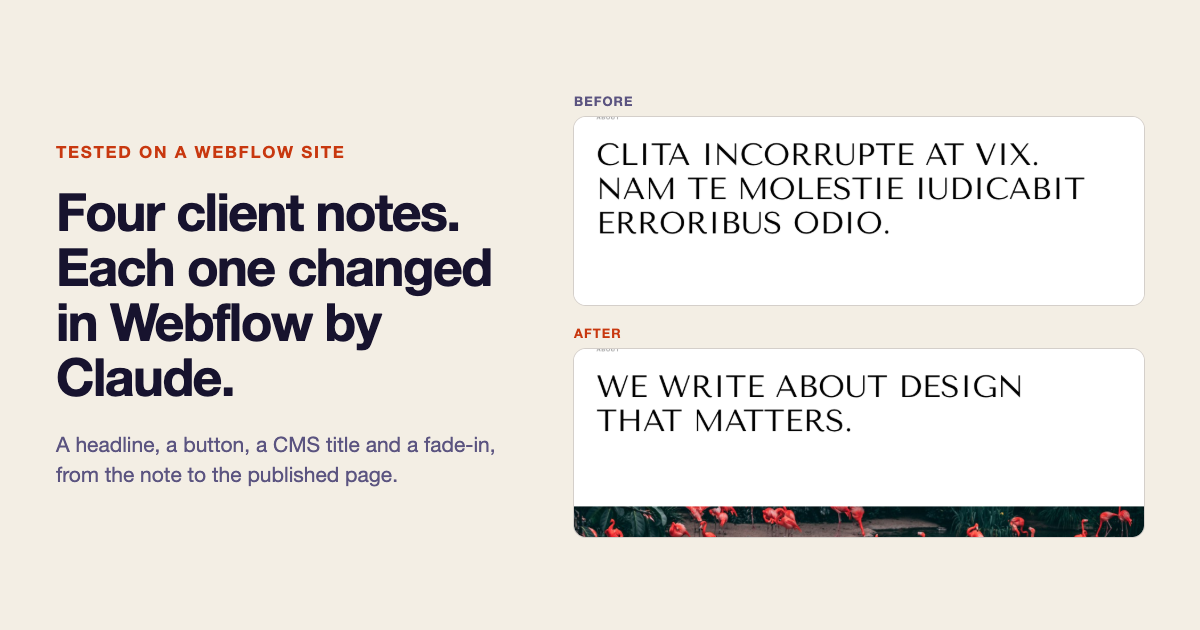
Change this headline to: “We write about design that matters.”
The note pointed at the h1 of the About page. Claude changed that element's text in Webflow, published the site to its webflow.io address and handed the note back for review, saying what it had changed. From the note to the published page: under two minutes.

Note 2: a button
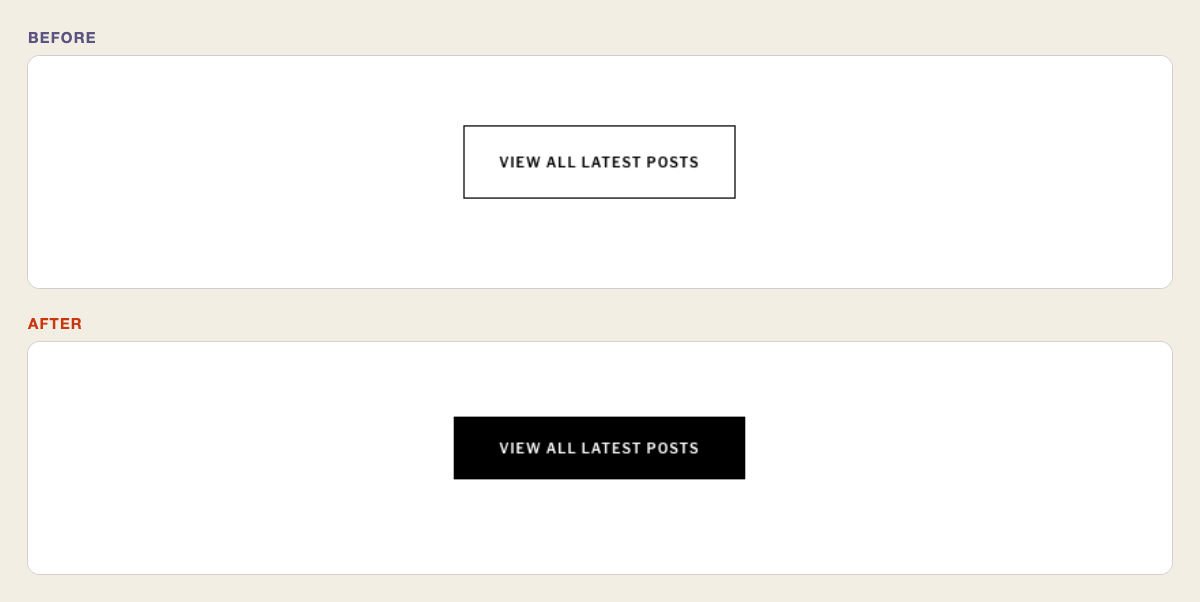
This button is barely visible. Make it black with white text, and give it more air: 16px top and bottom, 32px at the sides.
The site has other buttons with the same class. Claude left that class alone and added a combo class to this one button, so the rest stay as they were. Three minutes.
Note 3: a CMS title
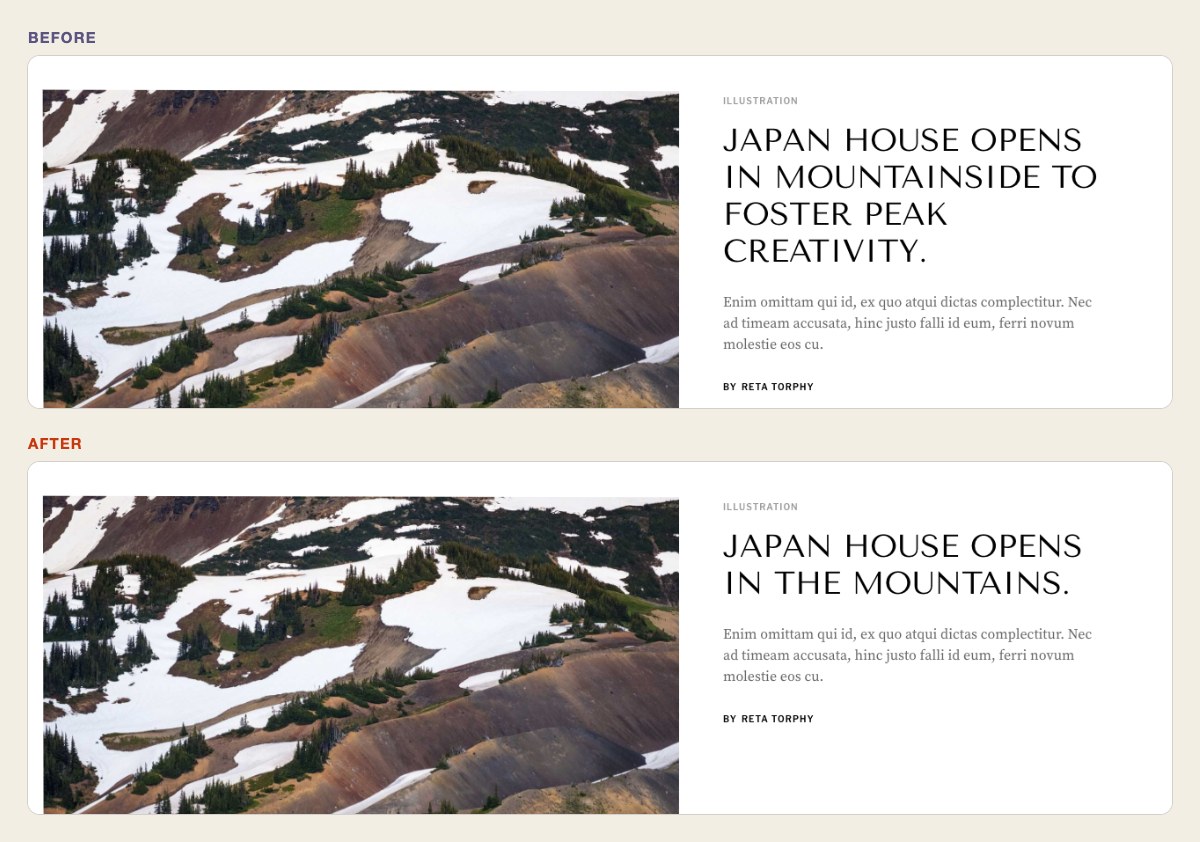
This article's title is too long. Change it to: “Japan House opens in the mountains.”
The title was not written on the page: it came from a CMS item. Claude found the item, changed its name and published the item. Three minutes.
Note 4: a fade-in
Make this paragraph fade in softly when the page loads: from transparent to visible, half a second.
Claude created the interaction in Webflow. It took the longest, a little over five minutes, and it taught us the most. Webflow's API does not set an interaction's initial state, so a fade-in on load flickers: the paragraph shows, disappears and then fades in. It only looks right when the element starts hidden with a class of its own. That shows on the published page, not before, so the published page is where Claude checks.
There is no picture for this one: it moves.
What came back
Each note came back marked “Ready for review”, with what Claude changed written on it and a capture of the page after the change beside the one from before; for the fade-in, a short video. From there a person approves it or sends it back with the reason. Claude cannot close a note.
The review link works on the published page too. With the review script added to the site, a guest came in through the link, the toolbar opened over the page and a note sent from there arrived, marked as coming from outside the team.
Three things to know before you try it
- Publishing in Webflow sends out everything waiting in the Designer, not only Claude's change. So Claude publishes to the
webflow.ioaddress only. Your own domain is published by your team, or by Claude only when someone on the team asks for exactly that in the note. - Webflow lets a site be published once a minute. Several notes in a row wait their turn.
- Claude changes what the note points at and nothing else: a text, a style, a CMS item the page shows, an interaction. It does not add or change scripts, custom code, forms or the site's settings because a note asks.
What we have not tested
- A team's own Claude Code session working from the instructions alone. We ran this one knowing what to look for.
- A large site, with components and interactions built in the Designer.
- Webflow's “Custom code” field in the site settings, which needs a paid Webflow plan. We added the review script through Webflow's API instead.
Try it on one site
It takes two lines in the terminal. They are at boolu.app/webflow, with how it works step by step.